How to open diagnostics tab
There’s a hidden tab that shows some diagnostics that can be used by Tech Support to troubleshoot a malfunctioning Buddy.
To open the diagnostics tab:
-
Connect to your IPEE Buddy
-
Navigate to the settings tab
-
Tap on System information
-
Tap 5 times on Serial number
-
Enter employee pincode: 987654
-
A new symbol will appear: the diagnostics tab is revealed
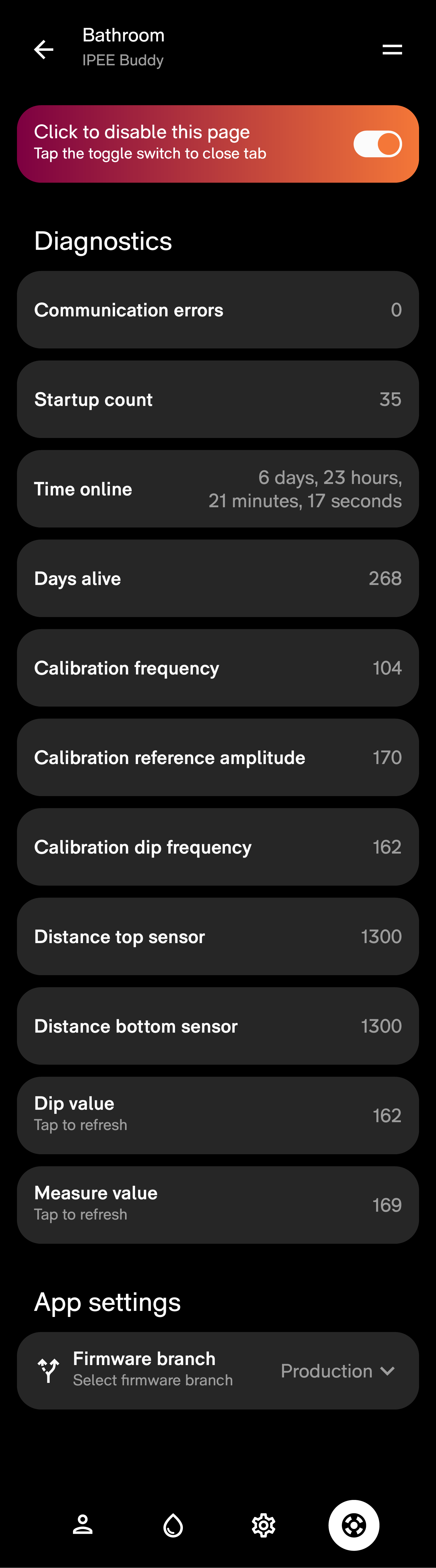
1. Calibration frequency
When the water level is steady, the Spectre chooses a fixed frequency on which it will measure, called the calibration frequency. On this position a shift of the signal due to changing conductivity of the toilets content will be the biggest. And is therefore the most sensitive frequency.
This value is fixed after calibration.

2. Calibration reference amplitude
The reference amplitude is the measure input voltage required from spectre corresponding to this calibration frequency.
This value is fixed after calibration.

3. Calibration dip frequency
The calibration dip frequency is the frequency on which the required voltage is the lowest.
This value is fixed after calibration.

4. Dip value
The dip value is the frequency corresponding with the signals lowest point at the moment the value is measured.
This value is refreshed when tapped on the value.

5. Measured value
The measured value is the measured voltage corresponding with the calibration frequency at the moment the value is measured.
This value is refreshed when tapped on the value.

6. Distance top sensor
This is the measured distance, in mm, from the top ToF-sensor. If no object is in front of the flush plate, this distance will be 1300.
This value changes in real time.

7. Distance bottom sensor
This is the measured distance, in mm, from the bottom ToF-sensor. If no object is in front of the flush plate, this distance will be 1300.
This value changes in real time.

More information on how to interpret these values, can be found here.
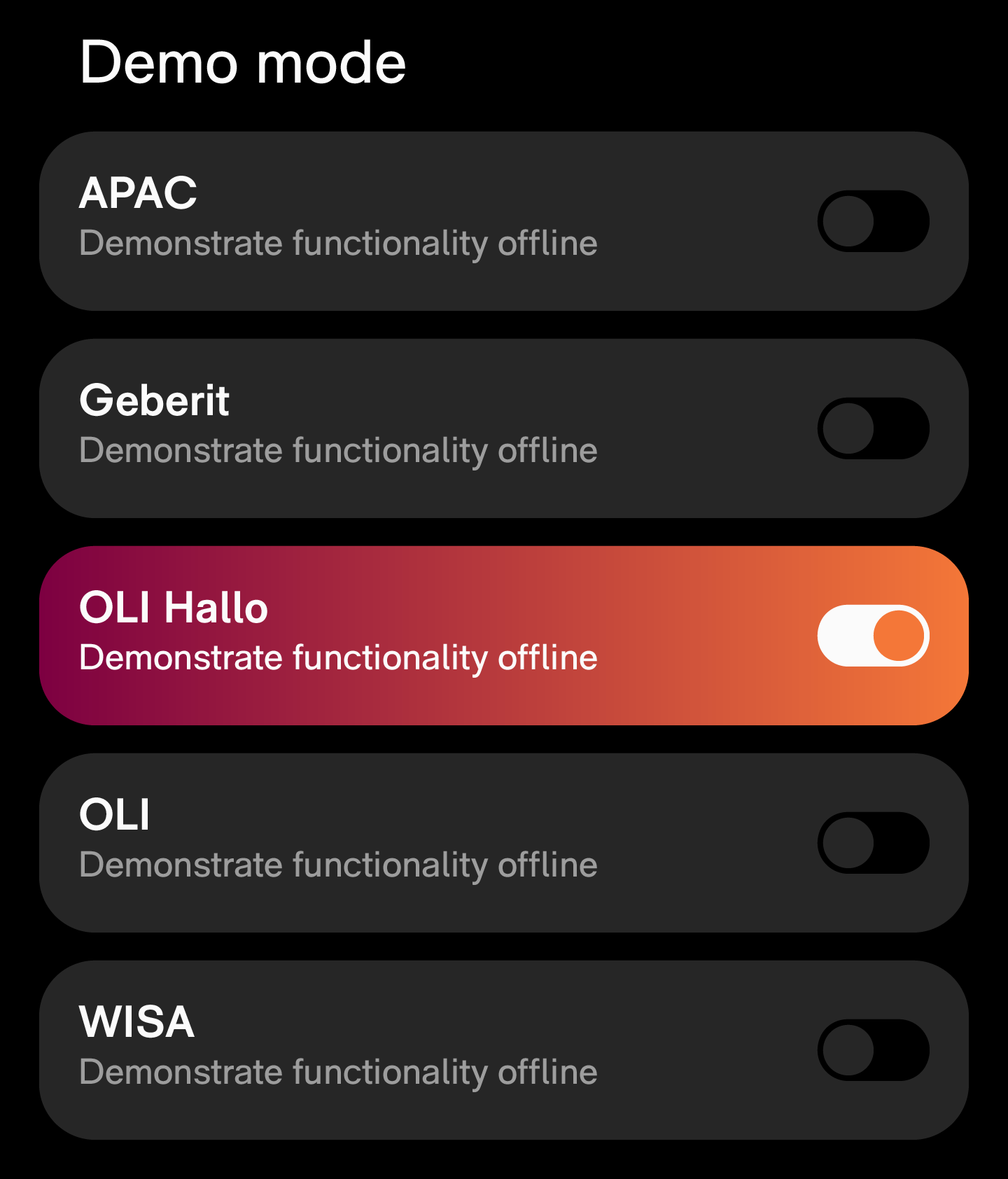
8. Demo mode
Demo mode allows users to see all features and options in the app without being actually connected to a flushplate.
As each signal adapter shows different options in the settings tab in the app, Demo devices for each setup can be activated. This is especially useful for Tech Support as they know have the ability to visualize the same options as the clients.
Similarly for Sales, it’s nice to be able to showcase the app without needing a powered flushplate nearby.
Finally, because Demo devices do not rely on a bluetooth connection, you won’t ever get any connection errors.
An activated demo setup will appear in the list of connected devices. More info here