Installing the app


Pairing devices
1. Startup
Once the app is installed, make sure to enable Bluetooth and Location in your smartphone settings as IPEE Buddy uses these technologies to pair with your phone.
An internet connection is required on first use to download the product documentation.

2. Add device
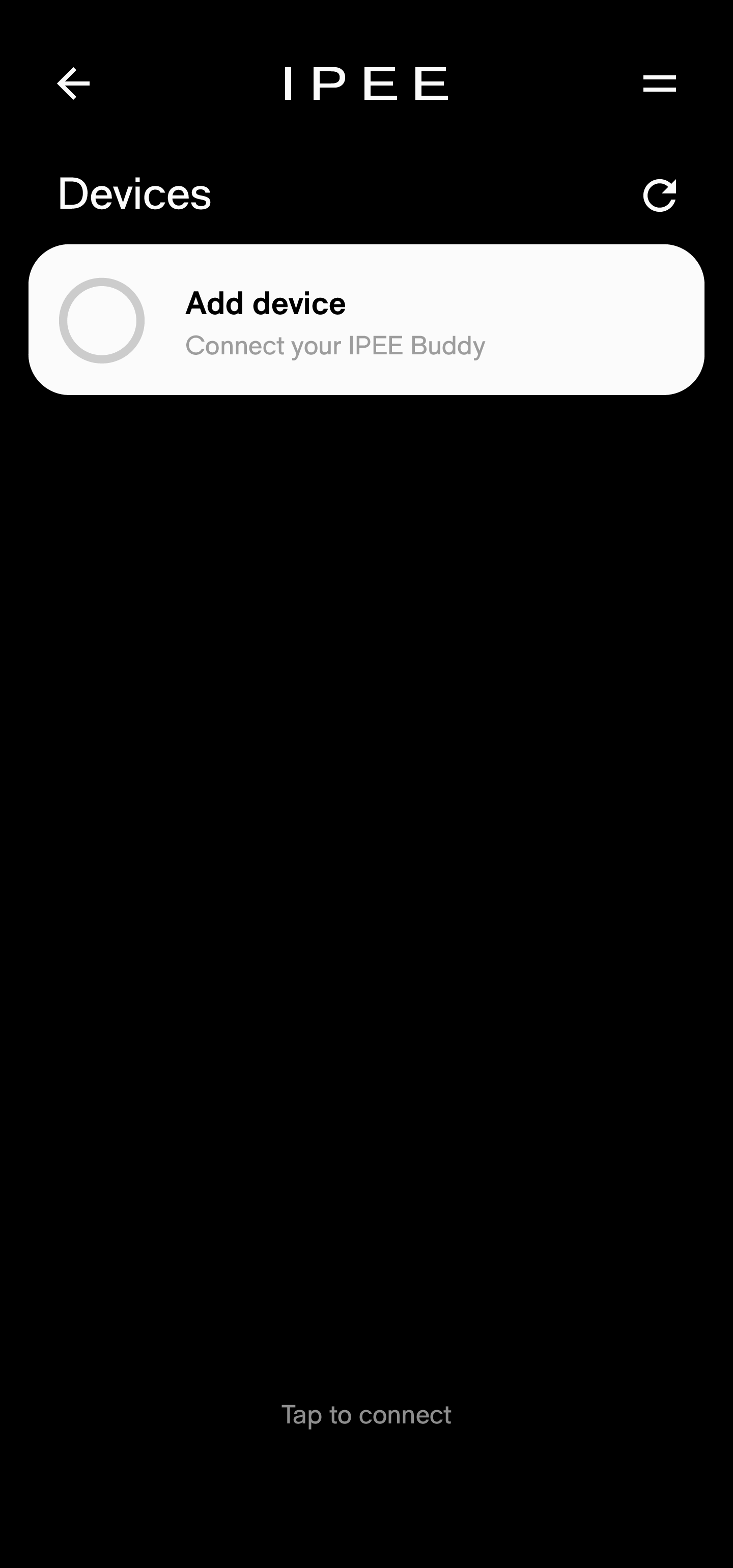
When the app has booted, the startup screen shows a list of all stored devices. On first use, this list will be empty. Tap Add device to search for IPEE Buddy flush plates nearby.
3. Device list
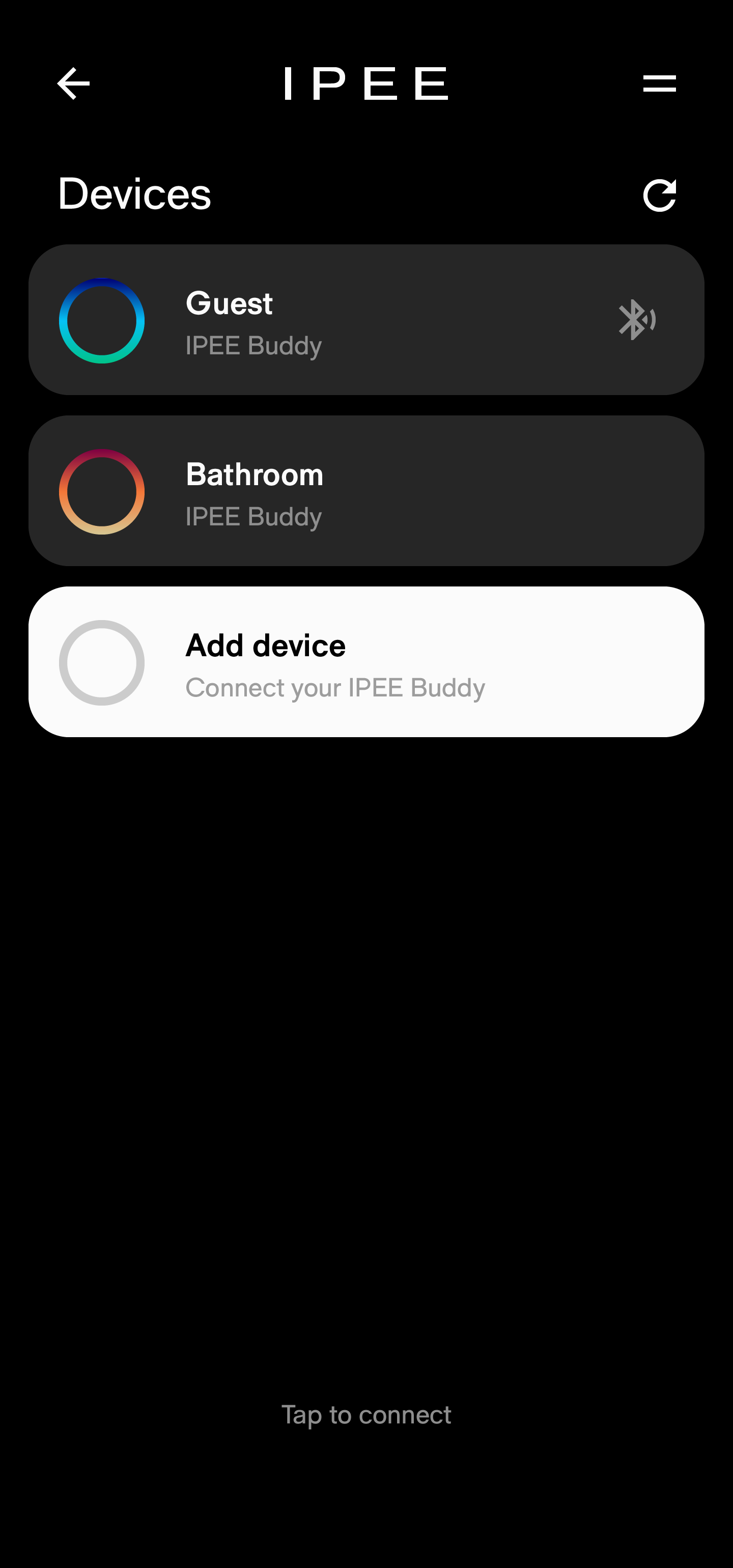
An overview of all Buddy flush plates in range will be displayed. Tap a flush plate to connect. Once connected, the IPEE logo on the flush plate turns blue. A connected Buddy is automatically stored in the app’s memory and displayed on the startup screen.
In the devices overview, flush plates within range will be marked with a Bluetooth pairing symbol.
4. Remove devices
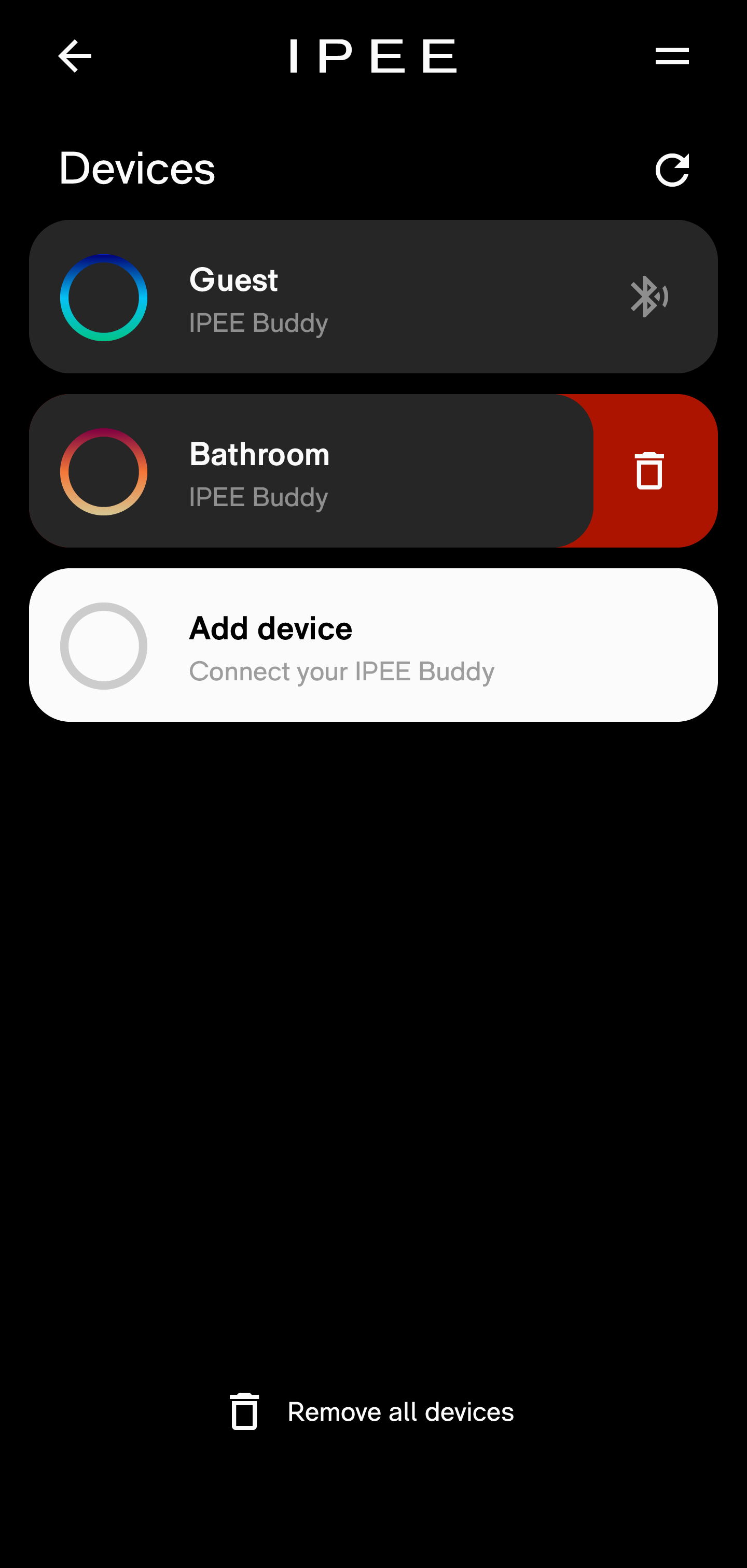
To remove a device from the device list swipe the device to the left, or press it until a red garbage bin icon appears on the right side. By pressing the icon the device is removed.
At the bottom of the page a button will appear that alows you to remove all devices at once. This is useful for service engineers or sales reps that often connect to different devices.
Navigating the app
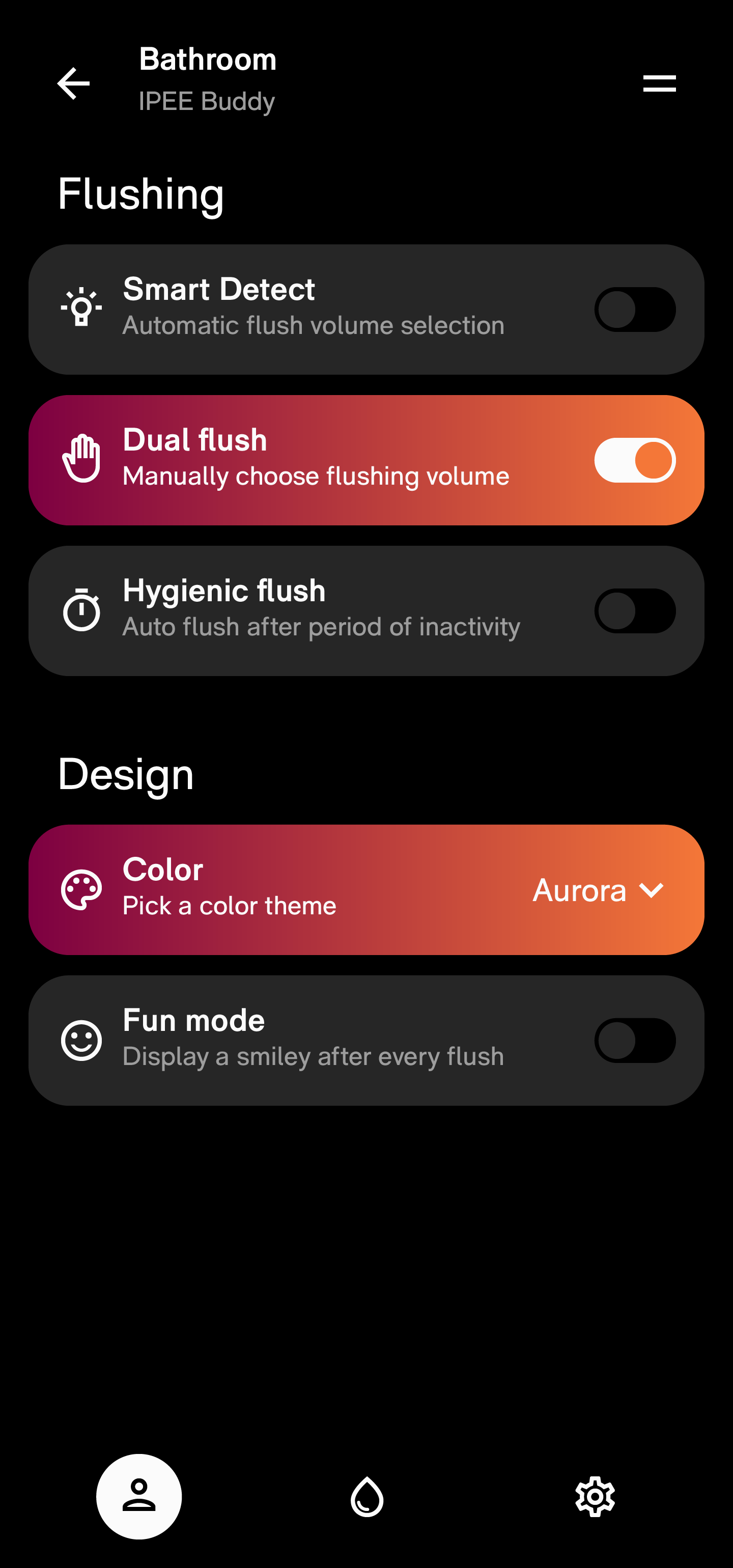
Once a device is added to the IPEE app, you can view preferences, statistics and settings by tapping the corresponding icon at the bottom.